




News
How to Connect Two Monitors to a Laptop: A Step-by-Step Guide
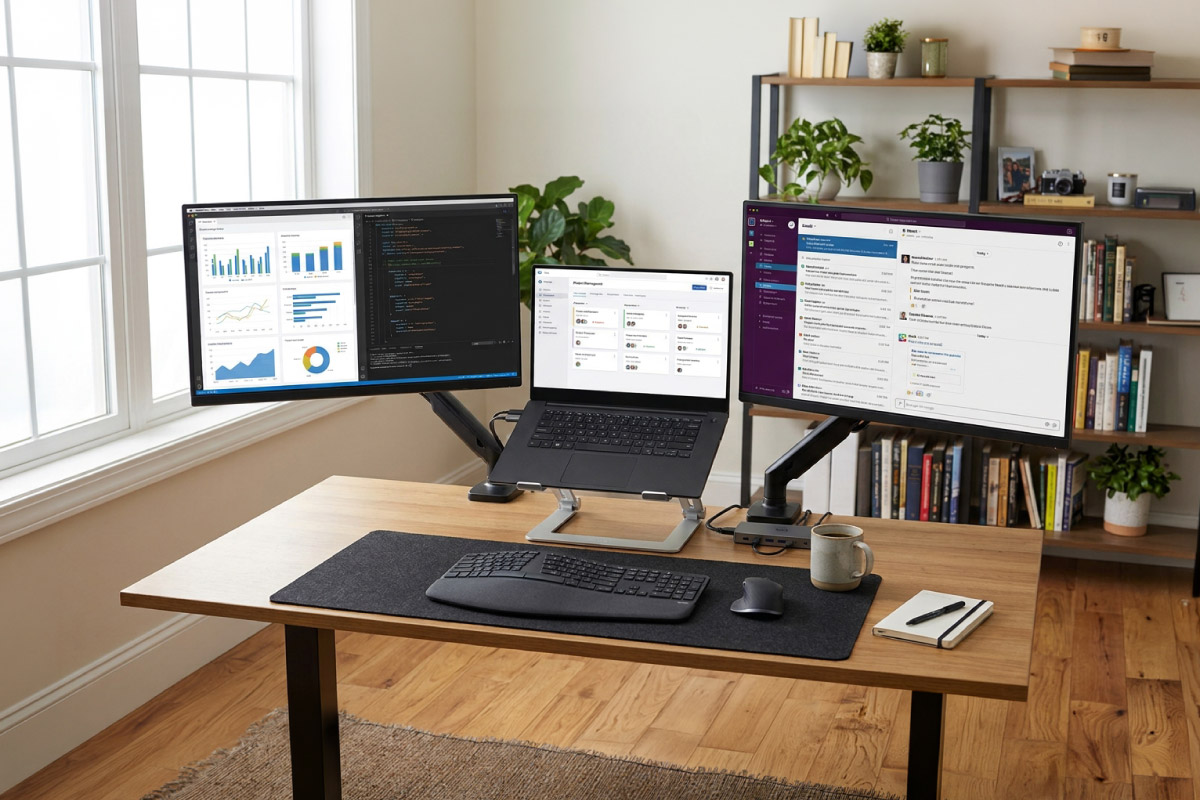
A second monitor is a big step up for a laptop. Two external monitors plus the laptop display give you room for email, a spreadsheet and a video call without shuffling windows. The catch is that not every laptop can drive two external screens, and the right cable depends on which ports you have.
This guide walks you through checking your ports, working out how many displays your laptop supports, choosing between direct cables, daisy-chaining and a dock, and setting everything up in Windows 11.
📋 Key takeaways
- Ports first: Count the video outputs on your laptop. You need two separate outputs, or one output that can feed two screens through a dock or daisy-chain.
- Not all USB-C carries video: A USB-C port needs DisplayPort Alt Mode or Thunderbolt to drive a monitor.
- Graphics sets the limit: Your processor or graphics chip has a maximum number of displays, and the built-in screen counts toward it.
- MST is Windows only: DisplayPort daisy-chaining works on Windows, but macOS mirrors MST screens instead of extending them.
- Windows 11 setup: Press Windows key + P, choose Extend, then arrange and align screens under Settings, System, Display.
What do you need to connect two monitors to a laptop?
You need three things: a laptop that can output to two external displays, two monitors with matching inputs, and the right cables or adapters to join them. Most problems come from the first item, so start there before buying anything.
There are four common ways to get two external screens running, summarised below.
| Method | What you need | Works on Windows? | Works on macOS? |
|---|---|---|---|
| Two direct cables | Two separate video outputs on the laptop | Yes | Yes, within the Mac’s display limit |
| Docking station | A USB-C (DP Alt Mode) or Thunderbolt port and a dock with two video outputs | Yes | Yes, but MST-based extended screens need a workaround |
| MST daisy-chain | DisplayPort 1.2 or later from the laptop and a monitor with DisplayPort out | Yes | No, MST screens are mirrored |
| USB display adapter | A free USB port and the adapter’s driver | Yes | Yes, with the vendor’s driver |
Which ports on your laptop can drive an external monitor?
Check both sides of the laptop and the spec sheet for your exact model, because the port shape alone does not tell you what it can do.
HDMI
The most common video port on business laptops. One HDMI port drives one monitor. HDMI does not support MST daisy-chaining, so you cannot run two screens in extended mode from a single HDMI output.
DisplayPort and Mini DisplayPort
Found on some business and workstation laptops. DisplayPort 1.2 and later support Multi-Stream Transport, which lets one port feed more than one monitor on Windows.
USB-C with DisplayPort Alt Mode
USB-C is a connector shape, and video over USB-C depends on the port supporting DisplayPort Alternate Mode. VESA, the body behind DisplayPort, designed DP Alt Mode so one USB-C cable can carry DisplayPort audio and video alongside USB data and power. If the port is data-only, a USB-C monitor or adapter will not show a picture.
Thunderbolt 3 and Thunderbolt 4
Thunderbolt ports use the USB-C connector and are marked with a lightning bolt icon. Intel specifies that Thunderbolt 4 supports up to two 4K 60 Hz displays or one 8K display from a single connection, which makes it the easiest route to two monitors with one cable. We compare the port types in more detail in our guide to USB-C vs Thunderbolt docking stations.
How many external monitors can your laptop support?
The ports are only half the story. Every graphics chip has a maximum number of displays it can run at once, and on a laptop the built-in screen counts as one of them. Intel lists this as the number of displays supported on each processor’s spec page. For example, the Intel Core i5-8350U found in many 8th generation business laptops supports three displays, so with the laptop screen on you can run two external monitors.
Intel also notes that the feature may not be available on every system, and the laptop’s own outputs matter just as much. A laptop with only one HDMI port and a data-only USB-C port may be limited to one external screen even though the processor could handle more. If your laptop has a dedicated graphics card, check that card’s display limit too.
💡 Pro tip: Search for your processor model on the Intel or AMD website and look for the number of displays supported. Then subtract one for the laptop screen to see how many external monitors you can run with the lid open.
Ready for a dual-screen setup?
Browse fully tested ex-corporate monitors, each covered by our warranty, in sizes that suit a home office or a busy desk.
Can you daisy-chain two monitors with DisplayPort MST?
Yes, on Windows, if your hardware supports it. Multi-Stream Transport lets the laptop send several display streams down one DisplayPort or USB-C connection. The first monitor takes its stream and passes the rest through its DisplayPort out port to the next monitor. According to Plugable’s MST reference guide, the monitors must support DisplayPort 1.2 or later (or Thunderbolt), the first monitor needs a DisplayPort output, and MST must be switched on in the monitor’s menu.
MST is supported on Windows 11 and Windows 10. It is not supported for extended desktops on macOS: a Mac connected to MST screens shows the same picture on both. Dell also points out that daisy-chaining works only on select monitors, so check the monitor manual for a DisplayPort out port and an MST setting before you buy.
⚠️ Watch out: Daisy-chaining shares one connection’s bandwidth across both screens. Two Full HD monitors are easy, but two high-resolution or high-refresh screens can exceed what one port carries, and one screen may drop to a lower resolution.
Should you use a docking station instead?
If you plug into the same desk every day, a dock is usually the neatest option. One cable from the laptop carries video, USB, network and often charging, and the dock’s own HDMI and DisplayPort outputs feed both monitors.
The dock still relies on your laptop. A USB-C dock needs a port with DisplayPort Alt Mode, and the number of screens it can drive depends on the bandwidth your laptop sends. Thunderbolt docks have more headroom. We cover the differences, power delivery and compatibility in our separate guide to choosing a USB-C or Thunderbolt dock, and you will find docks, cables and adapters in our accessories range.
How to set up two monitors in Windows 11
Once both screens are connected and switched on, Windows should detect them. Then follow these steps:
- Connect and power on both monitors, and select the correct input on each monitor if it does not switch automatically.
- Press Windows key + P and choose Extend. The other options are PC screen only, Duplicate and Second screen only.
- Open Settings, System, Display. You should see a numbered box for each screen. Select Identify to show which number belongs to which monitor.
- Arrange the screens by dragging the boxes to match how the monitors sit on your desk, then select Apply. Move your mouse across to check that it flows naturally.
- Check resolution and scale for each screen in the same Display page so text is a comfortable size on both.
Microsoft’s own guide to using multiple monitors in Windows covers these settings, including the Multiple displays section where you can tell Windows to remember window locations for each monitor connection. Note that Dell laptops default to Duplicate when a second screen is first connected, so the Windows key + P step is often the one people miss.
📘 Good to know: Once your screens are working, the position of each monitor matters as much as the technology. Our guide to setting up an ergonomic workspace covers height, distance and angles for a two-screen desk.
Second monitor not detected? Troubleshooting steps
Work through these checks in order, starting with the simplest.
- Check the cables and input: reseat both ends and make sure the monitor is set to the right input. Try a different cable if you have one.
- Use Detect: in Settings, System, Display, expand Multiple displays and select Detect.
- Confirm the port carries video: if a USB-C monitor or adapter shows nothing, the port may be data only. Check the laptop spec sheet for DisplayPort Alt Mode or Thunderbolt.
- Update Windows and the graphics driver: go to Settings, Windows Update, and select Check for updates. Install the latest graphics driver from the laptop maker’s support site.
- Check the display limit: if one screen goes blank whenever the other is connected, you may have hit the graphics chip’s maximum. Try closing the lid or using a dock.
- For daisy-chains: make sure MST is switched on in the first monitor’s menu, as described in its manual, and that the cable runs from its DisplayPort out port to the second monitor’s input.
- For docks: check the laptop maker’s support site for dock firmware, BIOS and driver updates, and confirm your laptop is on the dock’s compatibility list.
If you are still choosing screens, our guide to choosing the best refurbished monitor explains sizes, panel types and which inputs to look for so they match your laptop’s ports.
Frequently asked questions
Can I connect two monitors to a laptop with only one HDMI port?
Not directly from that single HDMI port in extended mode. HDMI does not support DisplayPort MST daisy-chaining, so one HDMI output drives one screen. Use a second video-capable port such as USB-C with DisplayPort Alt Mode or Thunderbolt, a docking station with two video outputs, or a USB display adapter that uses its own driver to add a second screen.
Can I close my laptop lid and use just the two external monitors?
Yes. In Windows 11 open Control Panel, go to Hardware and Sound, then Power Options, and choose what closing the lid does. Set When I close the lid to Do nothing for both battery and plugged in, then save. Your laptop stays awake with the lid shut and you can work on the two monitors with an external keyboard and mouse.
Do both monitors need to be the same size or resolution?
No. Windows treats each monitor as its own display, so you can mix sizes and resolutions and set the resolution and scaling for each one in Settings, System, Display. Matching models do make the setup look neater, and text stays the same size as you drag windows from one screen to the other.
Can a MacBook run two external monitors?
It depends on the chip. Dell notes that dual external monitors are not available on MacBooks with base M1 or M2 chips because of a chip limitation, while Apple lists the MacBook Air with M4 as supporting up to two external displays. macOS also does not support MST for extended desktops, so check your exact model before buying screens.
Will a refurbished business laptop support two monitors?
Most recent business laptops can, but check the exact model. Look at the ports (HDMI plus a USB-C or Thunderbolt port that carries video is a common combination) and the processor’s display limit on the Intel or AMD specification page. If the laptop also docks well, a single-cable dock is often the neatest way to run two screens at a desk.
Two external monitors can transform how you work on a laptop, and the setup takes minutes once you know your ports and display limit. If you need a laptop that handles multiple screens with ease, browse our refurbished business laptops, all fully tested, with a 1-year warranty and genuine Windows Pro, or contact our team for help matching monitors and cables to your machine.