




News
Windows 11 Pro vs Home: What’s the Difference and Which Do You Need?
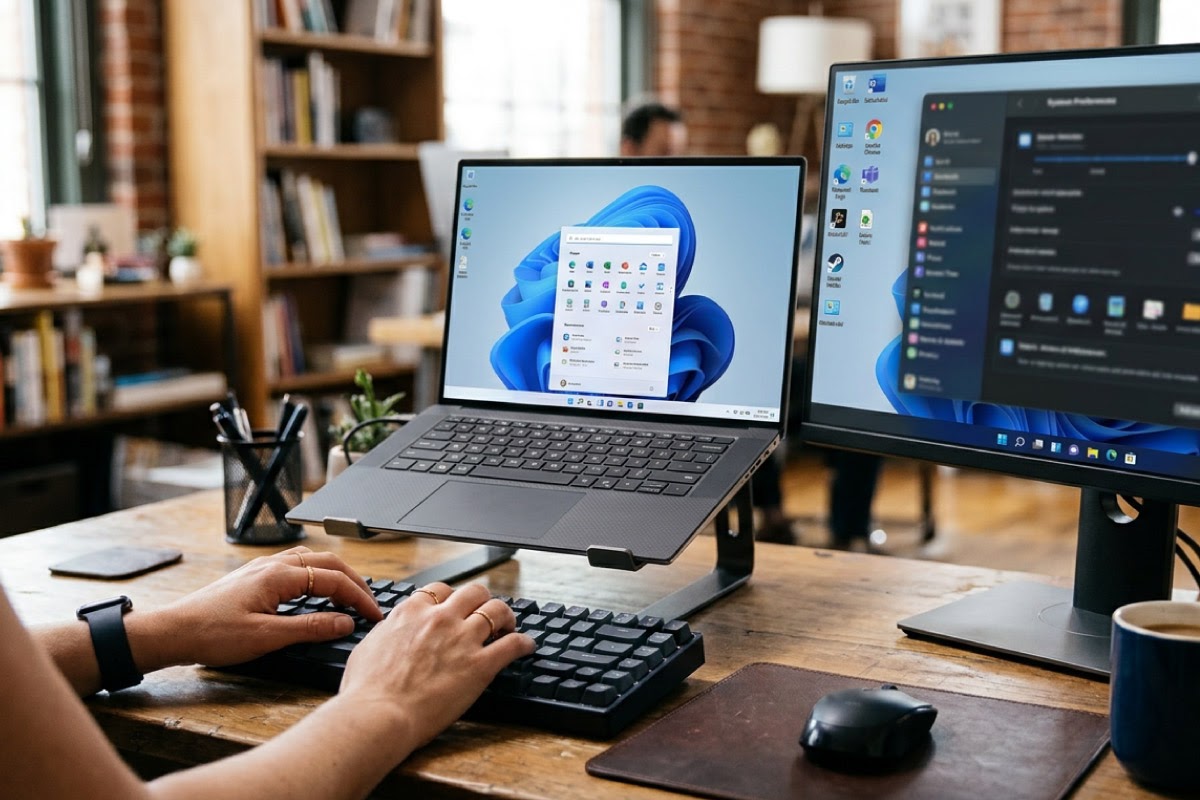
Windows 11 comes in two main editions for ordinary buyers: Home and Pro. They look identical on screen and run the same apps, so it is fair to ask why the difference matters at all.
The answer is in the features you do not see on day one: full disk encryption, remote access, virtualisation and the tools businesses use to manage computers. This guide lays out the verified differences, who genuinely needs Pro, and how to check or change the edition you have.
📋 Key takeaways
- Same core experience: apps and the everyday interface are the same on Home and Pro.
- Encryption: Home has device encryption; Pro adds full BitLocker management and BitLocker To Go.
- Business tools: domain join, Entra join, Group Policy and Remote Desktop hosting are Pro only.
- Virtualisation: Hyper-V and Windows Sandbox are not available on Home.
- Check yours: Settings, System, About shows your edition under Windows specifications.
What is the difference between Windows 11 Home and Pro?
Pro is Home plus a set of extra features aimed at businesses, IT departments and technical users. Everything you can do on Home, you can do on Pro. The reverse is not true. The table below summarises the differences confirmed in Microsoft’s documentation, with a few management features noted from reputable reviews.
| Feature | Windows 11 Home | Windows 11 Pro |
|---|---|---|
| Device encryption (automatic, on supported hardware) | Yes | Yes |
| Full BitLocker Drive Encryption and management | No | Yes |
| BitLocker To Go (encrypt USB drives) | No | Yes |
| Remote Desktop: connect out to another PC | Yes | Yes |
| Remote Desktop: be connected to (host) | No | Yes |
| Hyper-V virtual machines | No | Yes (CPU must support SLAT) |
| Windows Sandbox | No | Yes |
| Group Policy Editor | No | Yes |
| Active Directory domain join | No | Yes |
| Microsoft Entra join | No (Entra registration only) | Yes |
| Assigned Access and kiosk mode | No | Yes |
| Maximum RAM (64-bit) | 128GB | 2TB |
| First-time setup | Internet and Microsoft account required | Can also be set up with a work or school account |
The RAM limits come from Microsoft’s memory limits for Windows releases, which list 128GB for Windows 11 Home and 2TB for Pro. For almost any laptop or desktop you will buy, both numbers are far above what the machine can physically take, so this only matters for high-end workstations.
BitLocker vs device encryption: is Home secure enough?
Both editions can encrypt your drive, which protects your data if a laptop is lost or stolen. The difference is control.
Device encryption on Home is an automatic version built on BitLocker technology. Microsoft says it switches on when you sign in with a Microsoft account or a work or school account, and the recovery key is linked to that account. It covers the operating system drive and fixed internal drives only, and it needs hardware that meets Microsoft’s prerequisites.
Full BitLocker on Pro gives you the management side: choosing which drives to encrypt, how the recovery key is stored and managed, and encrypting removable USB drives with BitLocker To Go. Microsoft’s Windows 11 requirements page confirms BitLocker To Go is available in Pro and above. For a business handling client data, Pro is the practical choice.
⚠️ Watch out: Whether you use device encryption or BitLocker, make sure you know where your recovery key is saved before anything goes wrong. A firmware change or hardware repair can trigger a recovery prompt, and without the key the data on the drive cannot be accessed.
For more on protecting business data on second-hand hardware, see our guide to data security on refurbished computers.
Can Windows 11 Home use Remote Desktop?
Only in one direction. Microsoft’s Remote Desktop guide explains that the PC you connect to must run a Pro edition of Windows, while the device you connect from can run any edition, Home included.
So a Home laptop can remote into an office PC running Pro, but nobody can use Windows’ built-in Remote Desktop to reach a Home machine. If you want to log into your work desktop from home, or your IT support uses Remote Desktop to help staff, the machine being accessed needs Pro. Third-party remote support tools work on both editions, but they are separate products.
Hyper-V and Windows Sandbox: who needs them?
Hyper-V is Microsoft’s built-in tool for running virtual machines, letting you run a second copy of Windows or a Linux system inside your PC. Developers, IT staff and students in technical courses use it to test software and practise server setups. Microsoft lists Client Hyper-V as available in Pro and above, and it needs a processor with Second Level Address Translation (SLAT).
Windows Sandbox is a lighter tool: a temporary, isolated desktop that is wiped when you close it. It is handy for opening a suspicious file or testing an unknown program without touching your real system. Microsoft states plainly that Windows Sandbox is not supported on the Home edition.
💡 Pro tip: Virtualisation is memory hungry. If you plan to run virtual machines on Pro, aim for 16GB of RAM as a minimum and 32GB if you run more than one at a time. A refurbished mobile workstation is built for exactly this kind of load.
Who actually needs Windows 11 Pro?
You should choose Pro if any of these apply:
- Your company has an IT department or managed service provider that joins PCs to a domain or Microsoft Entra ID and manages them centrally.
- You need to access the PC remotely with Windows Remote Desktop.
- You handle sensitive data and want full BitLocker control and encrypted USB drives.
- You are a developer, IT student or technician who uses Hyper-V or Windows Sandbox.
- You set up shared or single-purpose PCs, such as a reception or kiosk machine, using Assigned Access.
Microsoft’s Entra documentation notes that Windows Home editions do not support Microsoft Entra join and can only use the more limited Entra registration. For a business moving staff to Microsoft 365 with central device management, that alone usually rules out Home.
If you mainly browse, stream, study and use Office at home, Home does everything you need. That said, Pro costs you nothing in usability, and it keeps your options open if your needs change.
Every refurbished PC ships with Windows 11 Pro
All our tested refurbished laptops and desktops come with genuine Windows 11 Pro and a 1-year warranty, so you get the business features from day one.
How do I check which edition of Windows 11 I have?
- Open Start and select Settings.
- Go to System, then About.
- Under Windows specifications, look at the Edition line. It will say Windows 11 Home or Windows 11 Pro.
The same screen shows your version number and installed RAM. If you are still checking whether an older machine can run Windows 11 at all, our guide on Windows 11 compatibility walks you through it.
Can you upgrade from Windows 11 Home to Pro?
Yes, without reinstalling. Microsoft’s Home to Pro upgrade guide describes two routes, both starting from Settings, System, Activation on an activated copy of Windows 11 Home:
- With a Pro product key: select Change next to Change product key, enter the 25-character key and follow the prompts.
- Without a key: expand Upgrade your edition of Windows and select Open Store to buy Windows 11 Pro through the Microsoft Store, then install and restart.
📘 Good to know: Microsoft recommends the Microsoft Store route for upgrading. Be cautious of very cheap product keys sold online; buy from Microsoft or a reputable reseller so your licence is genuine and stays activated.
Buying a machine that already comes with Pro avoids the extra step and cost altogether, which is one reason we include genuine Windows 11 Pro on every refurbished laptop and desktop we sell.
Frequently asked questions
Is Windows 11 Pro faster than Home?
No. Windows 11 Pro and Home run on the same core and perform the same on identical hardware. Pro adds features such as BitLocker, Remote Desktop hosting and Hyper-V, but it does not make apps, games or start-up faster. Speed comes from the processor, RAM and SSD, not the edition.
Can I use Windows 11 Pro for gaming?
Yes. Games run the same on Pro as on Home, and Pro includes all the gaming features found in Home. There is no performance penalty for choosing Pro. Some gamers prefer Pro for its extra security and virtualisation tools, but for gaming alone either edition works equally well.
What is Windows 11 Pro for Workstations?
It is a separate, higher edition aimed at powerful workstation hardware. Microsoft’s memory limits list Windows 11 Pro for Workstations at up to 6TB of RAM, compared with 2TB for standard Pro and 128GB for Home. Most buyers, including most engineers and designers, will never need it, because standard Pro already covers far more memory than typical machines hold.
Do I need Windows 11 Pro for Microsoft 365?
Not for the apps themselves. Word, Excel, Outlook and Teams run on both Home and Pro. You need Pro if your organisation wants to join the PC to Microsoft Entra ID or manage it centrally, because Microsoft states that Windows Home editions do not support Microsoft Entra join.
Is Windows 11 Pro worth it for home users?
It depends on what you do. If you want full BitLocker control, encrypted USB drives, Remote Desktop access to your PC or virtual machines, Pro is worth having. If you only browse, stream and use Office, Home is enough. Buying a refurbished PC that already includes Pro gives you the extra features without paying for an upgrade.
For most homes, Windows 11 Home is fine. For businesses, remote workers and technical users, Pro is the edition that fits. If you want Pro without paying for an upgrade, browse our refurbished desktop computers and laptops, or see our business page for bulk orders.