




News
Is Your Laptop Windows 11 Compatible? How to Check, and What to Do If Not
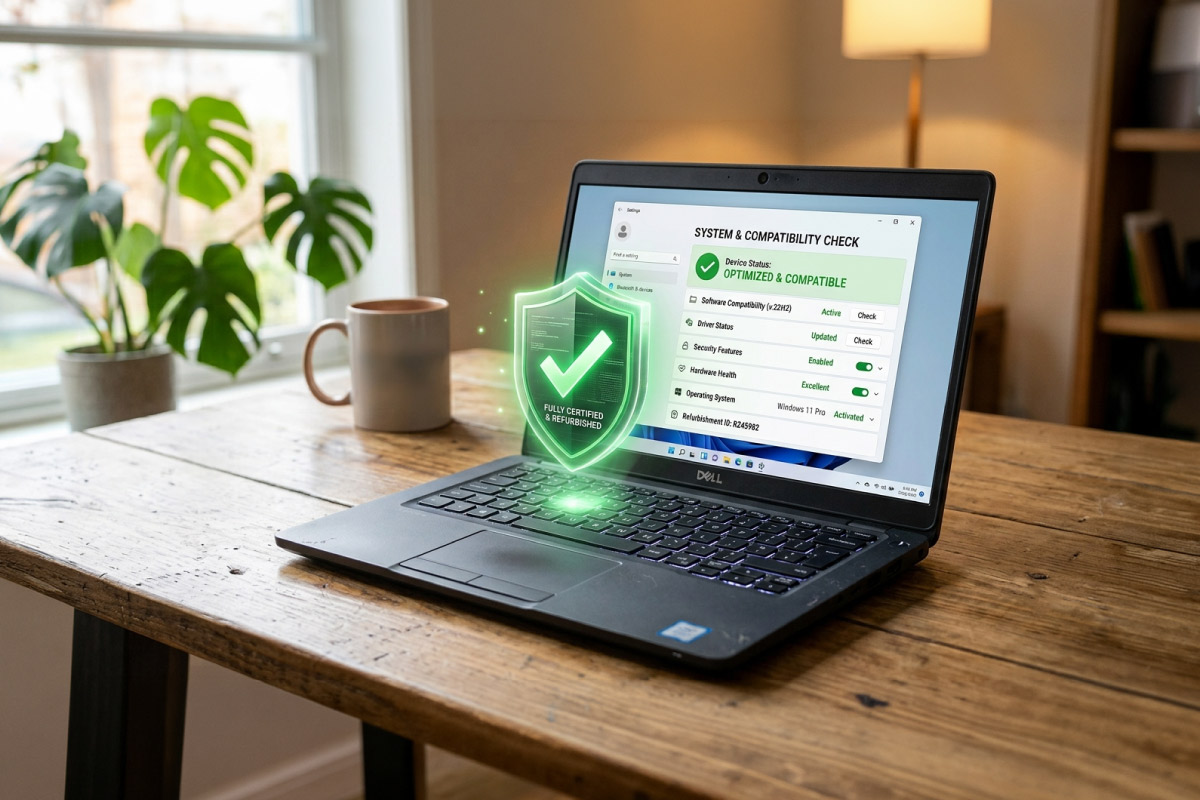
Microsoft ended support for Windows 10 in October 2025, so the big question for most people now is simple: can my laptop actually run Windows 11? Not every machine can, and the requirements catch out plenty of otherwise-fine laptops. Here is exactly how to check, what each requirement means, and what to do if your laptop does not make the cut.
Quick answer: if your laptop has an Intel 8th generation or newer processor (or an AMD Ryzen 2000 or newer), 4GB or more of RAM and TPM 2.0 enabled, it can run Windows 11. If it is missing any of those, the free upgrade will not be offered.
Key takeaways
- The fastest check is Microsoft’s free PC Health Check app, which gives a yes or no in seconds.
- The usual sticking points are an older processor or TPM 2.0 being switched off.
- If you are compatible, the upgrade to Windows 11 is free.
- If you are not, replacing the machine with a refurbished Windows 11 laptop is usually the best value.
The Windows 11 requirements in plain language
- A supported processor: broadly Intel 8th generation (late 2017) or newer, or AMD Ryzen 2000 or newer. This is the requirement that rules out most older laptops.
- TPM 2.0: a small security chip. Many laptops have it but it is switched off in the BIOS, so it is worth enabling before assuming you are out.
- 4GB of RAM or more, though 8GB is far more comfortable.
- 64GB of storage and UEFI Secure Boot, which most machines from the last decade already have.
How to check in two minutes
The easiest way is Microsoft’s PC Health Check app: download it, click Check now, and it tells you whether the machine is eligible and, if not, which requirement it fails. You can also open Settings and then Windows Update, where Windows shows an upgrade offer if your PC qualifies. To check the processor yourself, search for System Information and look at the processor line, then compare it to the Intel 8th generation or Ryzen 2000 cut-off above.
What to do if your laptop is compatible
Back up your files first, then go to Settings, Windows Update, and the free upgrade to Windows 11 should appear there. The process keeps your files and apps in place. It is genuinely free, so there is little reason to delay if your machine qualifies.
What to do if it is not compatible
If your laptop fails the check, you have two sensible choices. You can pay for Extended Security Updates to stay on Windows 10 a little longer, which only delays the problem, or you can replace the machine. Replacing sounds expensive, but it does not have to be. A refurbished business laptop from HP, Dell or Lenovo already meets every Windows 11 requirement and comes with genuine Windows 11 Pro installed, at a fraction of new prices. Even a budget pick from the laptops under R10000 range runs Windows 11 smoothly. If your computing happens at a desk, a refurbished desktop computer is the same easy fix.
For the bigger picture on the deadline and your options, see our guide on what to do now that Windows 10 support has ended.
Frequently asked questions
How do I know if my laptop supports Windows 11?
Run Microsoft’s PC Health Check app or open Settings, then Windows Update. The main requirements are an Intel 8th generation or newer CPU (or AMD Ryzen 2000 or newer), 4GB or more of RAM and TPM 2.0 enabled.
My laptop says TPM 2.0 is missing. Is it really incompatible?
Not always. Many laptops have TPM 2.0 but it is disabled in the BIOS. Enabling it can make an otherwise-eligible machine pass the check, so look before giving up.
Is it worth upgrading an old laptop or buying a refurbished one?
If the laptop is more than about seven years old, a tested refurbished machine with Windows 11 Pro usually gives you better speed and security for the money than forcing an upgrade.
Checking takes two minutes. If your laptop qualifies, take the free Windows 11 upgrade. If it does not, a refurbished Windows 11 machine is the cheapest way back to a secure, supported PC.