




News
Revive Your Old Laptop: Quick Tips and Tricks
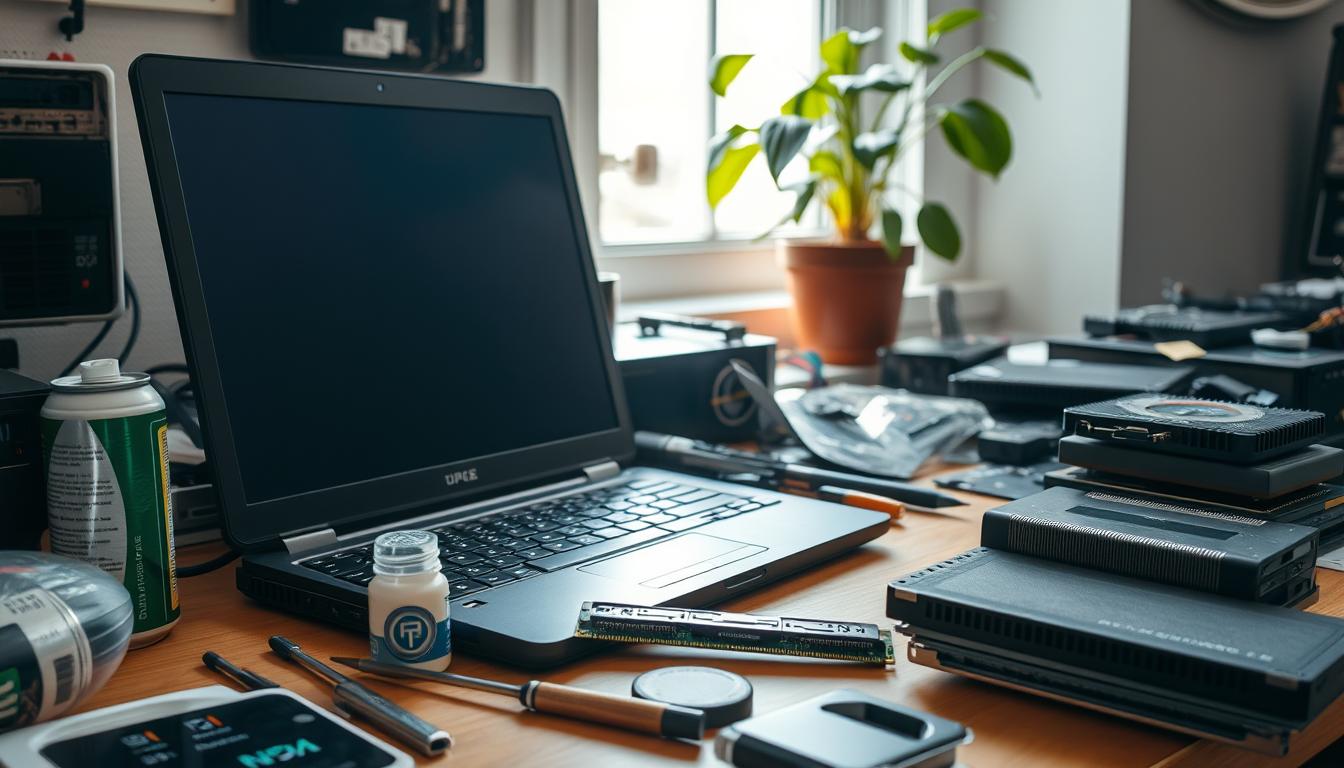
A laptop that takes four minutes to reach the desktop is not necessarily finished. Nine times out of ten the machine is being strangled by a mechanical hard drive, not by a worn out processor, and R450 of parts will make it feel like a different computer. Here is how we work through an old laptop in our workshop, in the order that actually pays off.
Quick answer: fit an SSD first, add RAM second, do a clean Windows install third. If the machine is older than a 4th generation Core i5 or the motherboard is faulty, stop spending and replace it.
Key takeaways
- Swapping a spinning hard drive for an SSD is the single biggest improvement you can make to an old laptop, and a 256GB M.2 SSD costs around R450.
- 8GB of DDR3 or DDR4 memory is roughly R600 and cures the freezing you get with a dozen browser tabs open.
- Windows 10 stopped receiving security updates in October 2025, so an unsupported machine needs a plan, not just a tune-up.
- Batteries are consumables. A battery holding under 60% of its original capacity will not improve with software tricks.
- Once repair costs pass roughly a third of a replacement machine, replacing is the better call.
Work out what is actually slow
Open Task Manager and watch the Performance tab while the laptop struggles. If disk sits pinned at 100% while CPU idles at 15%, the drive is the bottleneck. If memory is at 90% before you have opened anything demanding, you need RAM. If the CPU is the one at full tilt on a basic web page, the processor is genuinely past it and no upgrade will rescue it.
Fit an SSD
This is the fix that surprises people. A 2013 laptop with a mechanical drive might take three minutes to boot. The same machine with an SSD boots in under twenty seconds. A 1TB 2.5 inch SSD is around R349 and a 256GB M.2 drive is around R450, which makes this the cheapest performance upgrade in computing.
Clone the old drive if you want to keep everything as it is, or take the opportunity to do a clean install. Clean installs are usually faster because they leave behind years of accumulated startup programs.
Add memory
4GB was normal on machines from 2012 to 2015 and is painful now. A single 8GB stick of DDR3 or DDR4 is about R600 depending on the generation. Check what your model takes before you buy, since some ultrabooks solder their memory to the board and cannot be upgraded at all.
Tip: match the existing stick if you are adding rather than replacing. Mismatched speeds will run at the slower module and you lose part of the benefit.
Deal with the Windows question
Windows 10 reached end of support in October 2025. A machine still running it is not going to stop working, but it stops receiving security patches, which matters if you bank or work on it. Some older laptops meet the Windows 11 requirements and some do not, and the TPM and CPU generation rules catch out a lot of otherwise decent hardware. Our walkthrough on checking Windows 11 compatibility covers how to test yours in a couple of minutes.
Clean it, physically
Dust in the heatsink is the reason old laptops throttle and get loud. Compressed air through the vents helps a little. Opening the base, lifting the fan and clearing the packed dust from the radiator fins helps a lot, and repasting the CPU while you are in there is worth the effort on any machine over five years old. If you are not comfortable inside a chassis, a workshop will do it for a small fee.
Trim the software
Once the hardware is sorted, go through Task Manager and disable startup entries you do not recognise. Uninstall the trial antivirus that came with the machine and use Windows Security instead. Move photo libraries off the internal drive. None of this transforms a slow laptop on its own, but on top of an SSD it keeps the machine feeling quick.
Knowing when to stop
We fix a lot of laptops, and we also tell a lot of people not to bother. A cracked hinge, a failing motherboard or a screen replacement on a 2012 machine will cost more than the laptop is worth. At that point an ex-corporate replacement makes better sense: a tested refurbished business laptop with a Core i5, an SSD and genuine Windows 11 Pro starts well below what a screen and battery job costs, and it comes with a one year warranty. If the machine never leaves your desk, a refurbished desktop stretches the same budget further again.
For a strict budget, the clearance shelf is where the older but still tested stock lands.
Frequently asked questions
Is it worth upgrading a laptop that is eight years old?
If it has a 4th generation Core i5 or better and the chassis is sound, an SSD and RAM will give it a few more useful years for under R1,100. If the processor is a Core 2 Duo or an old Celeron, spend the money on a replacement instead.
Will an SSD really make that much difference?
Yes, and it is not subtle. Boot time, application launches and file copying all improve several times over. It is the only upgrade where customers regularly phone us to say they cannot believe it is the same machine.
Can I install Windows 11 on an unsupported laptop?
There are workarounds, but Microsoft does not guarantee updates on unsupported hardware and driver support can be patchy. For a work machine we would not recommend it. Buying a laptop that already ships with genuine Windows 11 Pro avoids the whole problem.
How do I know if the battery is the issue?
Run powercfg /batteryreport from Command Prompt. It gives you the design capacity against the current full charge capacity. Anything under about 60% is due for replacement.
Most old laptops have more life in them than their owners think, and the parts that unlock it are cheap. Spend an hour with an SSD and a can of compressed air before you write the machine off. If it turns out the hardware really is done, at least you will know you gave it a fair go.