




News
PC Cleaning and Data Backup on the Seagate Portable Expansion Drive 1.5 TB
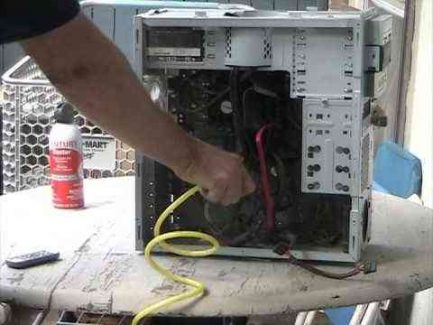
A yearly clean and a working backup are the two cheapest things you can do to keep a computer alive. Dust chokes the fans and cooks the components underneath them, and a failed drive takes your invoices, photos and school work with it. This guide covers both jobs: how to safely clean a desktop or laptop, and how to back up everything worth keeping onto a portable external drive such as the Seagate Portable Expansion Drive.
Quick answer: blow the dust out of your machine at least once a year, and keep two copies of anything you cannot afford to lose, one on an external drive and one in the cloud.
📋 Key takeaways
- Dust is the number one cause of overheating and sudden shutdowns in older PCs.
- Use compressed air, not a vacuum nozzle pressed against the board, and hold the fan blades still while you blow.
- Back up before you open anything, not after.
- One external drive is a backup. One external drive plus a cloud copy is a proper backup.
- If a clean machine is still slow, the problem is usually a mechanical hard drive or too little RAM, not the dust.
Why dust does so much damage
Every desktop and laptop pulls cool air across a heatsink and pushes warm air out. In a South African office or home, that air carries dust, pet hair and in winter a fair amount of ash and soot. Over two or three years it packs into the fins of the heatsink like felt.
Once that happens the fan runs louder, the processor throttles itself to avoid frying, and the machine feels sluggish for no obvious reason. Plenty of “slow old PCs” we see at the workshop are simply running hot. Twenty minutes with a can of air brings them back.
What you need before you start
- A can of compressed air
- A soft brush or a clean paintbrush
- A microfibre cloth
- A small Phillips screwdriver
- An external drive for the backup
Tip: do this outside or in a garage. Everything you blow out of the case ends up somewhere, and you do not want it settling on the desk you just cleared.
Cleaning a desktop safely
- Shut the machine down properly, switch off at the wall and pull the power cable out.
- Press the power button once with the cable removed to drain any residual charge.
- Lay the tower on its side and take off the side panel.
- Hold each fan still with a finger before you blow air at it. A spinning fan driven by compressed air can generate enough voltage to damage the board it is plugged into.
- Work from the top down: CPU heatsink, graphics card, power supply intake, front dust filter.
- Brush the stubborn stuff loose gently, then blow it out. Never wipe circuit boards with a damp cloth.
- Refit the panel, plug in, and listen. A properly cleaned machine is noticeably quieter.
Ex-corporate towers are usually the easiest machines to service, which is one reason we stock so many of them among our refurbished desktop PCs. Tool-free side panels and clip-in drive bays make a job like this a ten minute exercise.
Cleaning a laptop without opening it
You do not need to strip a laptop to make a real difference. Close the lid, turn the machine over and find the intake vents on the base and the exhaust vent on the side or rear. Short bursts of air into the intake while the laptop is off will shift most of the loose dust out through the exhaust.
Wipe the keyboard and palm rest with a barely damp microfibre cloth. For the screen, use the cloth dry or with a screen-safe spray, never household glass cleaner, which can strip the anti-glare coating.
If the fan is still roaring after that, the heatsink is packed and needs the base panel off. On most business models, HP EliteBook and Dell Latitude included, that is a handful of screws. Our guide on keeping a second-hand laptop in good condition walks through the rest of the routine.
What to back up, and what to leave
Most people back up far too much and then never finish the job. Be ruthless. The things that actually matter are usually:
- Documents, spreadsheets and PDFs, including anything SARS might ask for
- Photos and video
- Browser bookmarks and saved passwords, exported properly
- Email, if you use a desktop client rather than webmail
- Licence keys and installers for anything you paid for
Programs themselves do not need backing up. You can reinstall those. Windows keeps most personal files under C:\Users\your-name, so copying that folder catches the majority of it.
Setting up the external drive
Plug the drive in, let Windows assign it a letter, and create one folder named with today’s date. Copy your selected folders into it and then, this is the part people skip, open a few files from the drive to confirm they actually copied. A backup you have never opened is a guess.
Once that first copy is done, turn on Windows File History or use OneDrive or Google Drive for the files you change often. The external drive covers the bulk, the cloud covers the day to day. If the drive itself is showing its age, replacement hard drives are inexpensive and easy to swap.
Free up space while you are in there
Sort your Downloads folder by size and delete what you will never open again. Empty the Recycle Bin. Run Disk Cleanup and tick the Windows Update cleanup box, which on an older install can free ten gigabytes or more on its own.
Uninstall the trial software and toolbars that accumulate over the years. Then restart. Windows does a fair amount of tidying during a proper reboot that it never does during sleep.
When cleaning is not enough
If the machine boots in three minutes and the fans are clean, the bottleneck is almost always a mechanical hard drive. Moving Windows onto an SSD is the single biggest speed improvement you can make to an older PC, and it costs less than most people expect. We cover the practicalities in our piece on making the switch from a hard drive to solid state storage.
Past a certain age, though, the sums stop working. A ten year old dual core with 4GB of RAM will never feel quick, no matter what you put in it. That is usually the point at which a refurbished ex-corporate machine makes more sense than another round of parts. Ours ship with genuine Windows 11 Pro, a one year warranty and a seven day return window, and there are business laptops in the range for people who want the same thing in a portable form.
Frequently asked questions
How often should I clean the inside of my PC?
Once a year for a normal home or office. Every six months if you have pets, if the machine sits on carpet, or if it lives in a workshop or a dusty environment.
Can I use a household vacuum cleaner?
Use it to catch dust as it comes out of the case, not to suck it off the board. Vacuum nozzles build static and the brush heads are stiff enough to snap small components. Compressed air is safer.
Is one external drive enough of a backup?
No. External drives fail, get stolen and get left in taxis. Keep a second copy in the cloud for anything irreplaceable. The rule people in IT use is three copies, two types of storage, one of them off site.
Will cleaning my PC void anything?
On a machine bought from us, blowing dust out of the vents is fine. Removing components or opening a sealed power supply is not. If you are unsure, phone us before you take a screwdriver to it.
Set a reminder for the same week every year and the whole job takes an afternoon. A clean machine runs cooler, lasts longer and holds its value better, and a tested backup means the worst case is an inconvenience rather than a disaster.