




News
On the hunt for a New Tablet
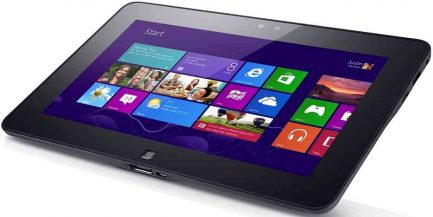
Shopping for a new tablet usually starts with a simple question that nobody asks out loud: will this thing actually replace my laptop, or am I about to own a second screen I mostly watch things on? For a lot of South African buyers the honest answer is the second one. This guide sets out where a tablet genuinely wins, where it quietly fails, and what to buy instead when the work is real.
Quick answer: buy a tablet for reading, drawing and light browsing. If you need to type, run Windows software, join Teams calls all day or hand in assignments, a business laptop will serve you better for the same money.
📋 Key takeaways
- Tablets are excellent consumption devices and mediocre production devices.
- A keyboard case pushes a tablet’s price into laptop territory without giving you a laptop.
- Anything that needs full Windows, from Pastel to CAD to a school’s exam software, rules a tablet out.
- Battery life and portability are the two areas where tablets still lead comfortably.
- Check what the device will still be receiving security updates for in three years before you commit.
What a tablet is genuinely good at
Reading. Note taking with a stylus. Watching things. Sketching. Handing to a child on a long drive. Standing on a counter as a menu or a display. Tablets are light, they start instantly, and the battery lasts through a full day of that kind of use without a charger in the bag.
For a sales rep who needs to show a catalogue in a client’s reception, or a student who annotates lecture PDFs, a tablet earns its place. Nobody is pretending otherwise.
Where the plan falls apart
Typing is the first wall. Onscreen keyboards are fine for a WhatsApp reply and painful for a two thousand word report. Add a keyboard case and you have spent another R1500 to R3000, carried more weight, and still ended up with a device that tips over on your lap.
Software is the second wall. Accounting packages, payroll, point of sale front ends, engineering tools and a lot of school and university software are Windows programs. Tablet versions of Word and Excel exist, but they are cut down, and anyone who has tried to fix a broken spreadsheet formula on a touchscreen knows how that goes.
The third wall is boring and expensive: file management, printing to the office printer, plugging in a projector, connecting a second monitor. All possible on a tablet, all fiddly.
The money comparison, honestly
A decent new mid-range tablet plus a keyboard case lands in roughly the same bracket as a solid ex-corporate laptop with a Core i5, 8GB of RAM and an SSD. One of those gives you a touchscreen and long battery life. The other gives you a proper keyboard, a full desktop operating system, ports, and the ability to run anything your employer or lecturer throws at you.
At the tighter end of the budget the gap widens further. There are working machines in our under R3000 range that will handle browsing, email, Office and video calls, which is more than most cheap tablets manage once you have added the keyboard.
Tip: if you are buying for a student, ask the institution what software they require before you decide anything. That one email settles the argument in most cases.
Old tablets age badly
This matters more than people expect. Tablets tend to stop receiving operating system updates after a few years, and once the app store stops supporting the version you are on, apps quietly stop working. There is no equivalent of dropping in more RAM or a bigger drive. The device is what it is.
A business-class laptop from the same era can usually be brought back with an SSD and a memory upgrade, and it will still run a supported operating system. That difference in lifespan is a large part of why we build our range around ex-corporate business laptops and desktops rather than tablets.
What we would recommend instead
For most of the people who phone us asking about tablets, one of three things fits better:
- A light business laptop. An HP EliteBook 840 or a Lenovo ThinkPad T490 weighs under 1.5kg, has a real keyboard, and handles a full working day.
- A touchscreen business laptop. If the touch element is what you actually wanted, some ex-corporate models have it, and you keep full Windows underneath.
- A desktop for the desk, phone for the road. Plenty of people discover the tablet was solving a problem their phone already handles. A refurbished desktop at home for the serious work is cheaper and faster than any tablet.
If it is the middle option you are after, a Core i5 machine is the sweet spot for everyday work. Our guide to matching a machine to what you actually do goes through the specs in more detail, and there is a separate piece on choosing for school and university if you are buying for a learner.
Frequently asked questions
Does Device Shop sell tablets?
Our focus is ex-corporate laptops, desktops, servers and parts, mostly HP, Dell and Lenovo. Stock changes, so phone or email us if you have something specific in mind and we will tell you honestly whether we can help.
Can a tablet replace a laptop for work?
For a job that is mostly email, reading and meetings, sometimes yes. For anything involving spreadsheets, industry software or long documents, no. Try a week of your actual work on one before you sell the laptop.
What should I look for in a laptop if I am coming from a tablet?
Weight under 1.6kg, an SSD rather than a mechanical drive, at least 8GB of RAM, and a battery that has been tested rather than assumed. Every machine we sell ships with genuine Windows 11 Pro, a one year warranty and a seven day return window, so you can put it through its paces at home.
None of this makes tablets a bad buy. It makes them a specific buy. Work out whether you are mostly consuming or mostly producing, be honest about the answer, and the decision usually makes itself.